

Interested in developing point cloud classifications to pinpoint distinct features within your point clouds? Discover more with Blue Marble Geographics.
The latest version 25 of Global Mapper Pro introduces an innovative tool for creating custom feature classifications. This tool utilizes segmentation, a more hands-on classification approach, wich identifies objects in a point cloud by analyzing the attributes and arrangement of the points. As an example, to isolate painted lines on a roadway, you would search for points that form a flat surface and share similar colors. This technique is predicated on the idea that each “object” within the point cloud, or each cluster of points, possesses a unique signature defined by its attributes and/or structures, distinguishing it from adjacent clusters.
The new Custom Point Cloud Classification feature leverages these signatures, allowing you to train a tailored classification tool to detect a specific signature in your point cloud. Once the classification is established, you can import additional point clouds into this workspace for classification. Currently in beta, this tool is part of Global Mapper’s ongoing enhancements, so stay tuned for future updates.
Illustrative Point Cloud: Aircraft
This article will guide you thru a fundamental workflow for creating a custom classification aimed at identifying aircraft. For hands-on experience with detailed step-by-step guidance, visit our complimentary online training portal. The courses available cover workflows for this and other new features in Global Mapper v25.
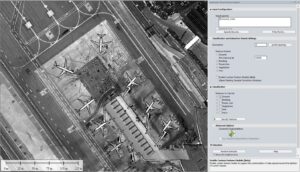
is your dialog box displaying differently? Ensure you have the latest build of Global Mapper v25.
Pro Tip* Prior to executing your new classification, utilize the existing classification tools to filter out other objects in the point cloud. This will enhance accuracy by focusing the custom classification on a more refined set of points.
Begin with a Segmented Point Cloud
While this step is technically optional, it is highly advisable. The custom classification tool evaluates many of the same attributes as the segmentation tool. When training the classification,selecting points by segment ensures that all points share similar signatures. For further details on segmentation, refer to the blogs listed below. Note that the dialog boxes may appear outdated, reflecting earlier versions, but the settings remain unchanged:
- Point Cloud Segmentation Analysis in Global Mapper Pro
- Classifying Transmission Towers in Point Clouds using Global Mapper Pro
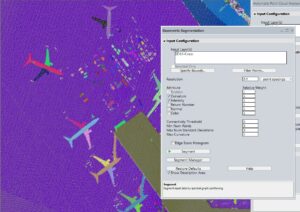
Each segment or cluster of points is assigned a random color. Cartographers,shield your eyes or modify the segments using the Segment Manager.
Activate Custom Feature Models (Beta)
By checking this option, the Training Samples window will open, providing new options below the checkbox. Click Add Class to create and name your new custom point cloud class. This name will appear in the dropdown and in the Configuration menu under lidar. You can also change the assigned color and edit the name later. This feature allows you to train existing classifications, such as ground or building classes. Instead of starting anew, you can refine existing classes to identify specific feature types, like uniquely shaped buildings. In the Classification and Extraction Shared Settings section, expand a classification and click Train to initiate the process.
Choosing Segments
-
In the workspace, select the points or segments that represent the features you wish to use for training the new classification. A class can be trained multiple times, so you don’t need to select everything at once.Hold down the CTRL key to select multiple segments simultaneously.
-
In the Training Samples window, click Collect Sample.
-
Choose a class from the dropdown menu.
-
Click Train under the classification in the feature Models section. Global Mapper will analyze these samples and display the characteristics and attributes that define the sample’s Signature.
-
The Feature Model Plot can be utilized to visualize and compare all segmentation classifications, including the built-in models. This is beneficial for ensuring that the classifications are distinct. More facts can be found in the next section.
-
the newly created custom feature classification will now be accessible within this workspace in the Classification section when the Enable Custom Feature Models option is checked.Additional point clouds can be imported into this workspace for use with the new classification.
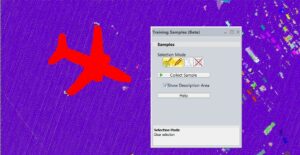
Select multiple segments or clusters of points to train the classification tool.
Feature Model Visualization
The Feature Model plot serves as a visualization tool for the signatures of your custom classes. utilize this feature to analyze why certain characteristics are or aren’t being captured, or to compare the signature against existing classes to confirm that your classification targets unique points. This bar graph illustrates several variables evaluated when searching for features in a point cloud. Point cloud segments with value characteristics that fall within these ranges will be classified accordingly.
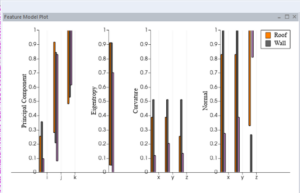
This feature model plot compares a custom Truck classification (pink) to the built-in ground and building classes.
The example illustrated here with pink lines (far right of each section) showcases a custom classification “Trucks” trained to detect semi-trucks in aerial lidar data. This is juxtaposed with ground and building points. The Feature Model Plot reveals that the signature of these features aligns more closely with a narrower subset of “Buildings.” The Z normals are close to 1, indicating that the roofs of trucks are predominantly flat. The X and Y values exhibit greater variability, likely due to the training being conducted on a nadir aerial dataset that lacks many oblique angles. This dataset is older and of lower resolution, capturing only a limited number of points on the sides of the trucks.
Experience Global Mapper Pro with a complimentary 14-day trial today.