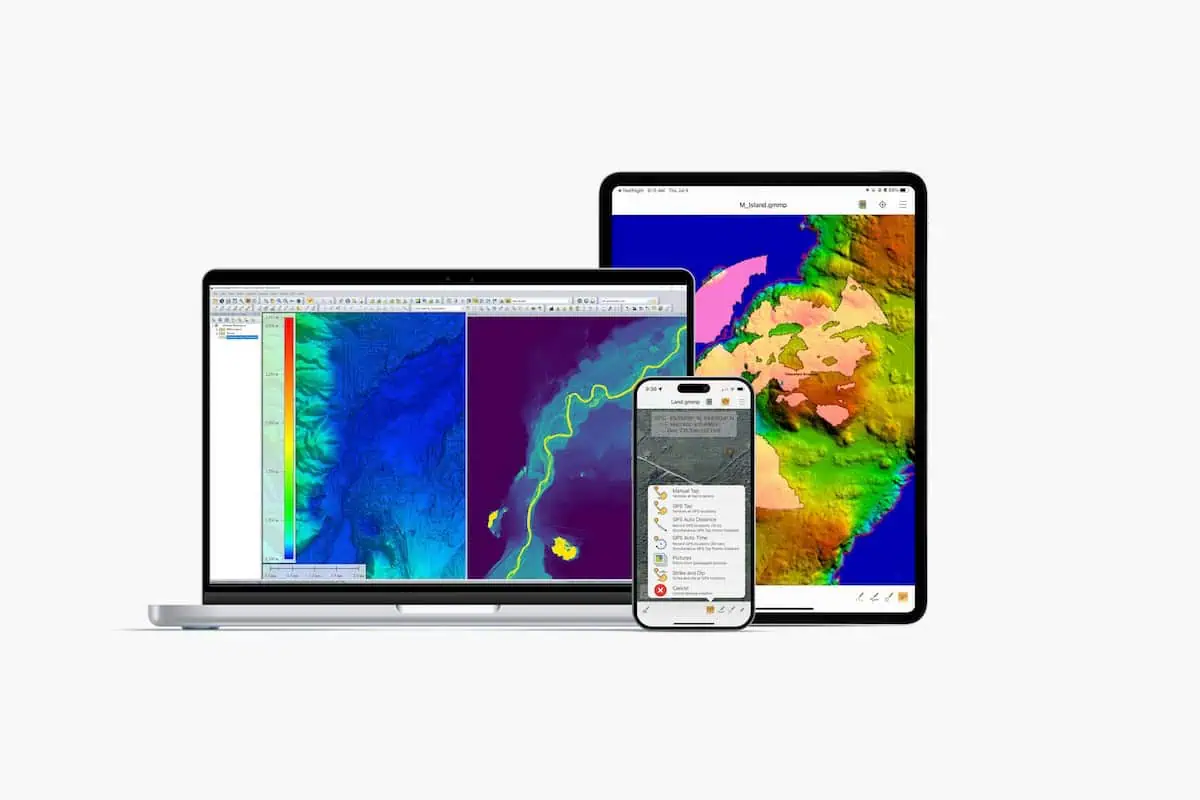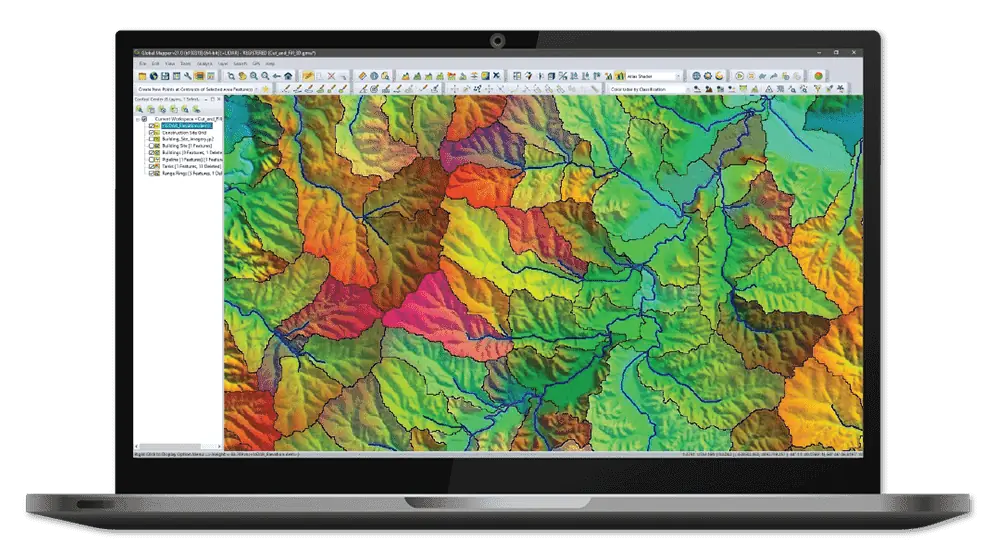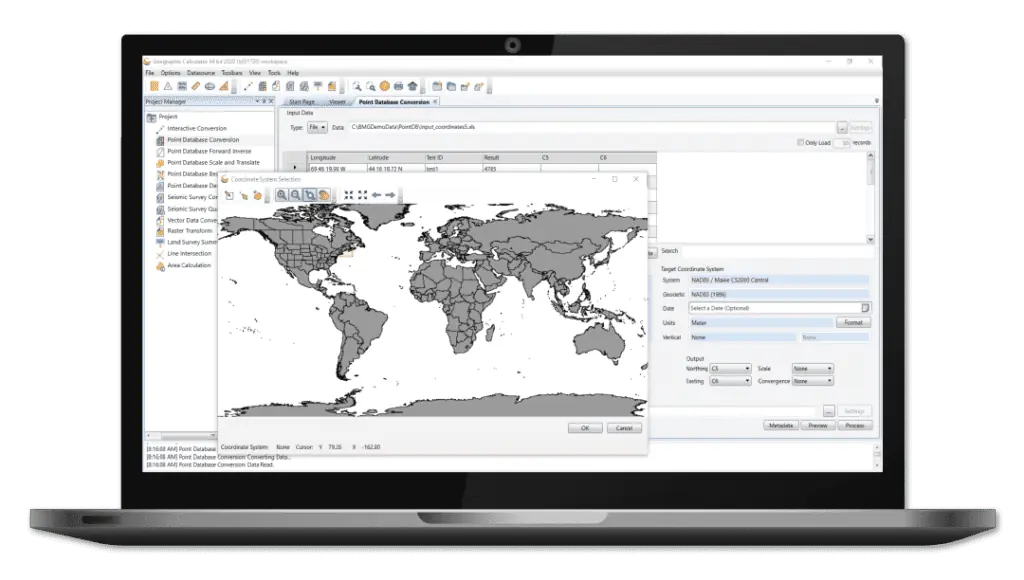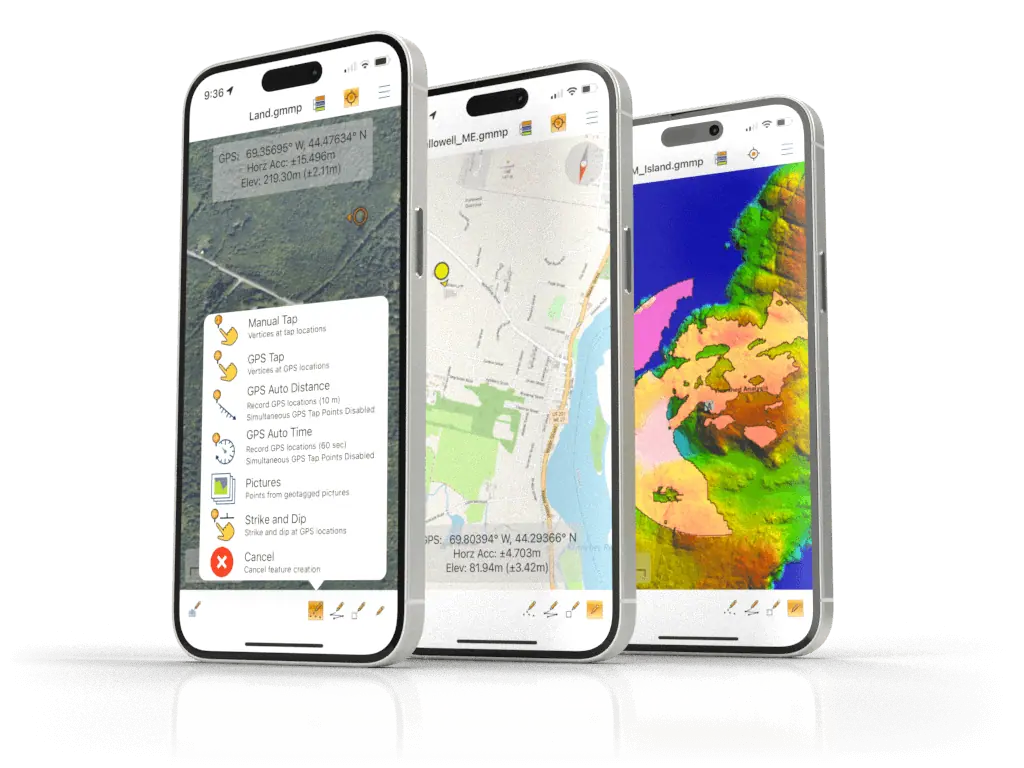


Blue Marble Geographics has unveiled the latest iteration of Global Mapper version 25.1, introducing innovative data visualization features and enhanced tools.
A standout enhancement is the hillshade tool, which now simulates shadows on terrain layers according to geographical location and time of day, accurately reflecting the sun’s angle in real life.
Version 25.1 also enriches Global mapper’s extensive data editing capabilities,allowing users to crop mesh features—like those created from pixels to points—using rectangular selections. For those utilizing positioning devices, this update enables the reception of location data from GNSS devices via TCP and UDP, including compatibility with Trimble devices, aligning with the functionalities of global Mapper Mobile.
In addition to the Path Profile enhancements in global Mapper Pro, the Standard version now features user-friendly updates to the settings dialog and the ability to apply terrain shaders to elevation data. other improvements in data visualization include upgrades to the 3D viewer, such as a new 3D Feature Info tool and enhanced accuracy in point feature scaling.
All features mentioned are accessible in both Global Mapper and Global Mapper Pro, though Pro-specific features are exclusive to the Pro version. For a extensive overview of new features, updates, and bug fixes, refer to the v25.1 Knowledge Base.
Curious about the new Pro features in version 25.1? Explore this blog: Top New Features in Global Mapper v25.1 Pro.
Dynamic Sun/Shadow Position calculation Based on Location, Date, and Time
The Hillshade tool in Global Mapper effectively illustrates directional shadows on terrain data, aiding in the visualization of terrain texture and shadow estimation. The latest version enhances this tool by enabling automatic calculations of the sun’s Azimuth and altitude based on a specified date and time at a given location.By inputting either the data’s location or a chosen point, users can visualize sunlight exposure throughout the day for any time of the year. The date and time settings are automatically adjusted to the data’s location, eliminating concerns about time zone discrepancies.
3D Viewer Vector Feature Info Tool
The Feature Info tool is a fundamental component of Global Mapper, allowing users to view attribute data of features directly from the workspace. This tool has now been extended to the 3D viewer for vector and point cloud data, accessible via a new icon in the 3D viewer toolbar. Similar to its 2D counterpart, users can click on a lidar point to access its metadata or on a vector feature to reveal all associated attribute details. The selected vector feature will also be highlighted in the 2D view, with editing options available for data adjustments.
It’s important to note that, akin to the digitizer tool, sidewall area features that are artificially extruded to the surface (like buildings) cannot be selected. Though, the underlying vertices can be selected, allowing users to utilize the Edit and Vertices functions in the Feature Info tool to modify data and see changes reflected in the 3D viewer.
Enhanced Settings and elevation shader in Path Profile
Following the reorganization of the dropdown Analysis menus in Global Mapper, the Path Profile settings have been categorized by function for improved usability. Users will now find three distinct tabs: General Settings,Data display,and Perpendicular/Parallel Path profiles.
Additionally, the path profile tool now allows users to color terrain data in the Path Profile view using elevation shaders, including custom options. this feature enhances data visualization in the path profile window, facilitating easier interpretation against the workspace view. More color customization options for background, text, and font can be accessed by right-clicking within the path profile window.
Creation of Parallel Profile Lines
The path profile tool now accommodates parallel profile paths alongside the existing perpendicular paths. This feature provides a series of cross-sectional views of terrain or point cloud data spaced along a defined path, allowing users to examine subsections of the path profile. Users can create parallel profiles from single-segment line paths, which are straight lines without turns or additional vertices.
These paths can also be exported as line features that trace the highest elevation values of the terrain, as illustrated below. Perspective paths are an excellent method for exporting linear terrain data to modeling software that may struggle with complex terrain data,unlike Global Mapper.
Mesh Cropping Functionality
The long-awaited feature to crop mesh elements is now available! While Global Mapper has previously allowed cropping of vector, raster, and lidar data, mesh layers have a unique structure. Comprising both vertices and polygons that define the shape of an object or terrain, the new mesh cropping function enables users to trim the edges of a mesh layer to fit the bounds of a selected rectangular area feature. If the selected area is not rectangular, the layer’s bounding box will be utilized. Simply select the area feature, access the crop tool, and ensure the Meshes and Mark Cropped Features Deleted options are checked. (To undo the crop, simply press ctrl Z on your keyboard.)
This feature is particularly beneficial in Pixels to Points with drone-acquired imagery. Photogrammetry generates 3D data based on visible elements in images, which works well for the main study area but may yield less defined mesh edges on the periphery where image coverage is limited.(This is why capturing buffer imagery slightly outside the study area is often beneficial.) With mesh cropping,users can now confine the bounds of mesh features to a specified area.
STL File Generation for 3D Printing
Since version 16, Global Mapper has offered the capability to export STL 3D files. The new version 25.1 introduces a dedicated STL export option designed to simplify the preparation process for 3D printing. This includes the ability to scale the final model in inches, centimeters, or millimeters, ensuring the file is appropriately sized for your slicer and print bed. Users can utilize the base options to automatically generate a base and sidewalls, and the base thickness option to determine how far below the lowest elevation the base should extend. Be cautious: setting the base thickness to “0” may create holes or thin spots in your model, depending on your print layer thickness. The Z Scalar option allows for exaggeration of height changes, similar to the Vertical Exaggeration setting in the 3D Viewer.
to explore the new functionalities in Global Mapper Standard and Pro v25.1, download a free 14-day trial today.